> ## Documentation Index
> Fetch the complete documentation index at: https://docs.withgauge.com/llms.txt
> Use this file to discover all available pages before exploring further.
# Tags
> Label prompts with custom categories to slice your visibility and citation data along any dimension.
## Tags
Tags let you label prompts with custom categories so you can break down visibility and citation data along the dimensions that matter to you, like funnel stage, product line, audience, or use case. Any prompt can have multiple tags, and every tag becomes a filter across the rest of Gauge.
## Creating Tags
Tags are simple labels you define yourself. You can create them directly on the Prompts page, or ask Ask Gauge to create them for you.
## Applying Tags to Prompts
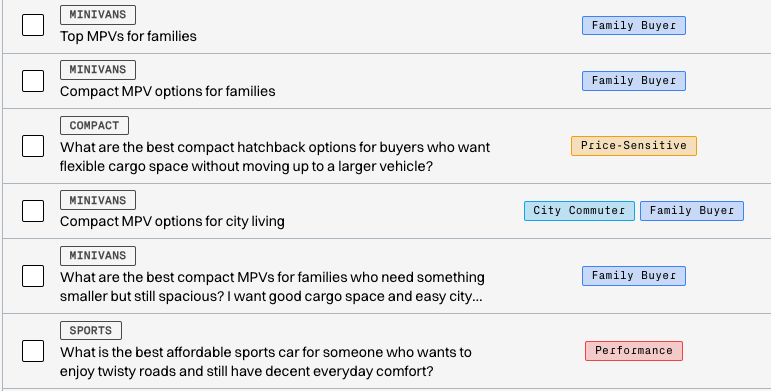
A prompt can carry several tags at once. A single prompt might be tagged "City Commuter" and "Family Buyer" if it touches both.
You can apply tags manually on the Prompts page, or have Ask Gauge apply them in bulk.
 ## Slicing Visibility and Citations by Tag
Once your prompts are tagged, you can filter the Rankings and Citations pages by tag. This lets you take a precise view of the data for any slice you care about, for example your bottom-of-funnel prompts only, or your enterprise prompts only.
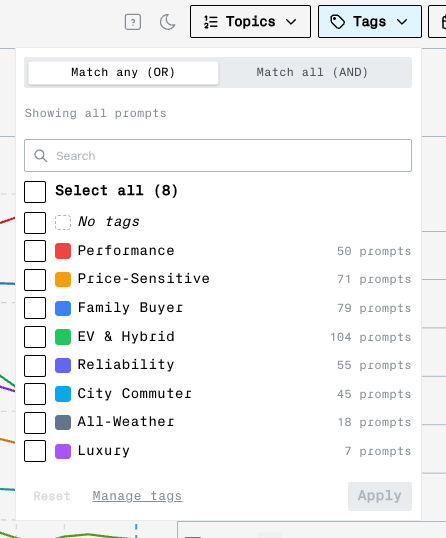
Tag filters combine with the existing topic and LLM filters, so you can stack them to narrow down further. Use "Match any" to see prompts with at least one of the selected tags, or "Match all" to see only prompts that carry every selected tag.
## Slicing Visibility and Citations by Tag
Once your prompts are tagged, you can filter the Rankings and Citations pages by tag. This lets you take a precise view of the data for any slice you care about, for example your bottom-of-funnel prompts only, or your enterprise prompts only.
Tag filters combine with the existing topic and LLM filters, so you can stack them to narrow down further. Use "Match any" to see prompts with at least one of the selected tags, or "Match all" to see only prompts that carry every selected tag.
 ## Setting Up Tags with Ask Gauge
Ask Gauge has built-in tools for creating tags and applying them to prompts. You can ask it to read every prompt you're tracking, analyze them, and tag them automatically based on a structure you describe.
For example, you can ask Ask Gauge to tag every prompt by funnel stage, or by which product line it relates to. The agent reads through your prompts and applies the tags across your entire prompt set without you having to label them one by one.
## Setting Up Tags with Ask Gauge
Ask Gauge has built-in tools for creating tags and applying them to prompts. You can ask it to read every prompt you're tracking, analyze them, and tag them automatically based on a structure you describe.
For example, you can ask Ask Gauge to tag every prompt by funnel stage, or by which product line it relates to. The agent reads through your prompts and applies the tags across your entire prompt set without you having to label them one by one.