> ## Documentation Index
> Fetch the complete documentation index at: https://docs.withgauge.com/llms.txt
> Use this file to discover all available pages before exploring further.
# CMS Integrations
> Connect Webflow or Framer to Gauge so you can pull in existing pages, edit them with the agent, and publish updates straight to your site.
## CMS Integrations
Most of the work you do in Gauge is about your owned content: finding the pages that need work, writing new pieces to win prompts, and keeping everything up to date. Linking your CMS lets you pull your existing pages into Gauge, edit them with the agent, and publish the changes back to your site.
## Why Link Your CMS
### Edit Existing Content
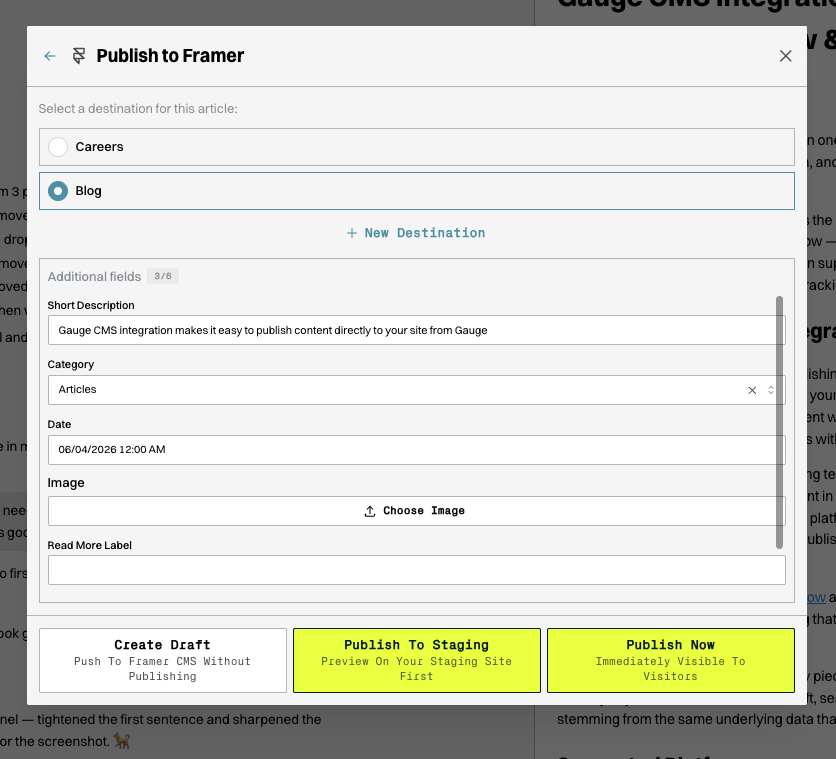
Gauge pulls your published pages out of your CMS so you can work on them directly. You can edit a page yourself or ask the agent to do it for you, for example refreshing it with new data, tightening sections, or rewriting it to target a specific prompt.
When the page is ready, you have two ways to publish it back:
* **Publish to your live website** to send the update straight to production.
* **Publish to staging** to review the changes before they go live.
 ### Publish New Content
The same options apply to new pieces. When you finish a draft in Ask Gauge, publish it to your live website or to staging for review. You can also update and republish a page later, or unpublish a piece to remove it from your site.
### Manage Content in Library
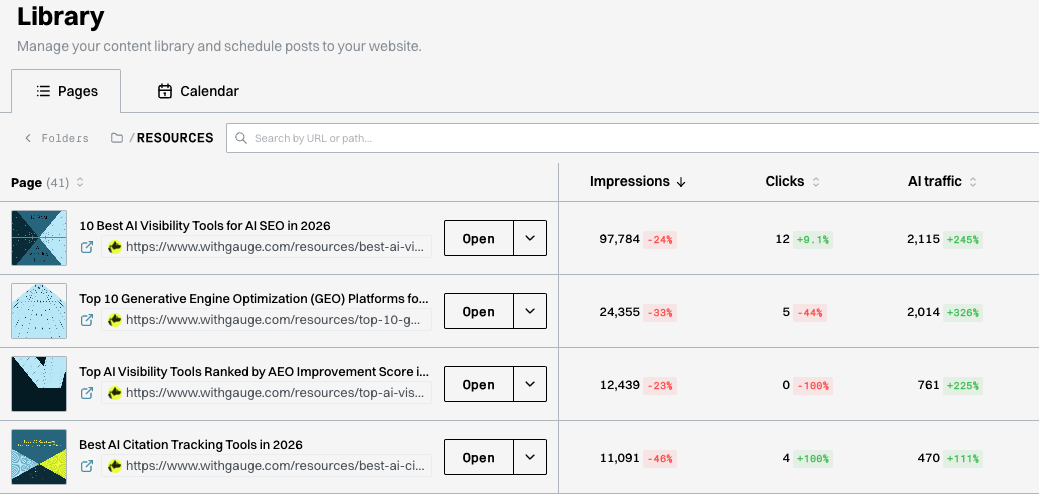
[Library](/navigating/library) is organized around your sitemap, pulled directly from your connected CMS. Importing your content brings every published post into one view, where you can see Google Search impressions and clicks, AI traffic, citation rate, and bot traffic side by side.
This shows which pages are working, which are being cited, and which need attention. From Library you can open any page to start editing it with the agent.
### Publish New Content
The same options apply to new pieces. When you finish a draft in Ask Gauge, publish it to your live website or to staging for review. You can also update and republish a page later, or unpublish a piece to remove it from your site.
### Manage Content in Library
[Library](/navigating/library) is organized around your sitemap, pulled directly from your connected CMS. Importing your content brings every published post into one view, where you can see Google Search impressions and clicks, AI traffic, citation rate, and bot traffic side by side.
This shows which pages are working, which are being cited, and which need attention. From Library you can open any page to start editing it with the agent.
 ## Linking Your CMS
Both integrations live under **Settings → Integrations**. Each one shows a connection status and the steps to get set up. During import, a field-mapping step lines up the fields in your CMS collection (like title and body) with Gauge.
### Webflow
Webflow connects through OAuth, so you authorize Gauge directly in Webflow.
1. Go to **Settings → Integrations** and find the Webflow card.
2. Click **Connect Webflow**.
3. Sign in to Webflow and approve the requested permissions. Gauge needs read and write access to your CMS, sites, and pages so it can import and publish content.
4. When you return to Gauge, the card shows a **Connected** badge.
5. Click **Import your Content** to choose a site, select the collections you want, map their fields, and bring your posts into Library.
To stop the connection, click **Disconnect**. Publishing to your Webflow CMS will stop working until you reconnect.
### Framer
Framer connects with an API key and your project URL, which you create inside Framer.
1. Open your Framer project and go to **Site Settings → General**.
2. Scroll to **API Keys** and create a new key.
3. Find your **Project URL**. This is the URL in your browser when the project is open in Framer (for example, `https://framer.com/projects/abc123`).
4. In Gauge, go to **Settings → Integrations**, find the Framer card, and click **Connect Framer**.
5. Paste in your API key and project URL, then connect.
6. Once connected, click **Import your Content** to select collections, map fields, and bring your posts into Library.
You can **Disconnect** at any time from the same panel.
## Posting to Other Platforms
If your site does not run on Webflow or Framer, you can use **Copy as Markdown** to put the full article on your clipboard. Paste it into any platform Gauge does not integrate with directly.
## Linking Your CMS
Both integrations live under **Settings → Integrations**. Each one shows a connection status and the steps to get set up. During import, a field-mapping step lines up the fields in your CMS collection (like title and body) with Gauge.
### Webflow
Webflow connects through OAuth, so you authorize Gauge directly in Webflow.
1. Go to **Settings → Integrations** and find the Webflow card.
2. Click **Connect Webflow**.
3. Sign in to Webflow and approve the requested permissions. Gauge needs read and write access to your CMS, sites, and pages so it can import and publish content.
4. When you return to Gauge, the card shows a **Connected** badge.
5. Click **Import your Content** to choose a site, select the collections you want, map their fields, and bring your posts into Library.
To stop the connection, click **Disconnect**. Publishing to your Webflow CMS will stop working until you reconnect.
### Framer
Framer connects with an API key and your project URL, which you create inside Framer.
1. Open your Framer project and go to **Site Settings → General**.
2. Scroll to **API Keys** and create a new key.
3. Find your **Project URL**. This is the URL in your browser when the project is open in Framer (for example, `https://framer.com/projects/abc123`).
4. In Gauge, go to **Settings → Integrations**, find the Framer card, and click **Connect Framer**.
5. Paste in your API key and project URL, then connect.
6. Once connected, click **Import your Content** to select collections, map fields, and bring your posts into Library.
You can **Disconnect** at any time from the same panel.
## Posting to Other Platforms
If your site does not run on Webflow or Framer, you can use **Copy as Markdown** to put the full article on your clipboard. Paste it into any platform Gauge does not integrate with directly.